








In this playbook, you’ll learn three ways to use Automations in Plytix to avoid repeating manual tasks. We'll go over how to standardize supplier fields in your catalog, enrich products for launch, and autofill compliance fields with updates that run in the background.
What you’ll learn
By the end of this playbook, you’ll know how to set up automations to keep your product content accurate with no manual edits.
This workflow helps you:
- Save hours of repetitive work
Set a rule up once and let it run on every new product, instead of fixing the same fields by hand each time a supplier file comes in. - Launch products faster
Automatically move your products across different stages by enriching their content using existing product context. - Reduce errors and compliance risk
Keep your data consistent and make sure required information is filled in every time, rather than relying on someone to remember.
Step-by-step guide
- Standardize attributes from your supplier
Create an automation that finds and replaces supplier values with your catalog values, such as changing “regular” to “standard” in a size type field. Apply it to all matching products so it also covers your existing catalog, and it will run on new products as they arrive. - Enrich content to get products launch-ready
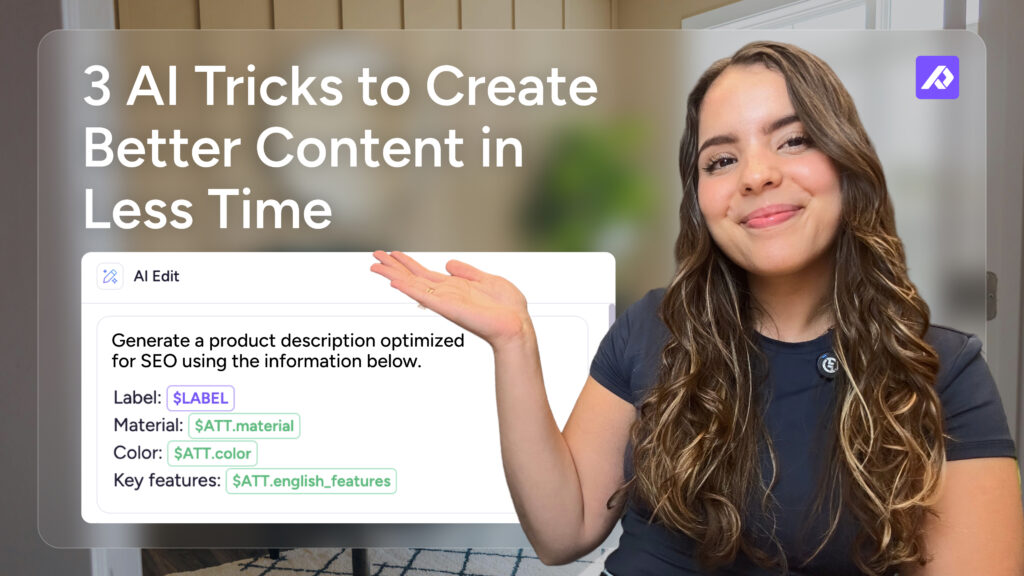
Add an AI prompt that uses the basic information in your catalog to generate richer content. In the video example, we’re using a basic description and other product fields to generate a richer description. Save it to a separate field so you can compare the two versions side by side. - Auto-fill compliance fields
Create a rule based on category, market, and product details (for example, electronics sold in the EU with a specific battery type) that fills in the mandatory compliance text as soon as the conditions are met.
- Send complete products to your channels
Once your products have all the information they need, set up a completeness attribute to track it. When it reaches 100%, an automation can update the product status to completed and add the product to your destinations, such as a retailer feed or ecommerce platform.
Best practices and resources
Once your first automations are running, these tips will help you build more of them for the different use cases in your catalog:
Click on any of the tips below for a step-by-step guide.
- Combine multiple conditions and actions in one automation
Keep related logic together by adding all the conditions and actions you need to a single automation, rather than creating separate ones for each step.
- Add your brand guidelines to AI prompts
Give AI additional context about your tone of voice, blocked terms, and target audience, so generated content stays consistent with your brand. You can create different guidelines for unique sales channels, markets, or product types, and add them in the AI prompts used in your automationd.
- Set up custom roles to control who can edit automations
Use the "preview" option to see a sample of the generated content before saving the result to all products. This lets you tweak the prompt to match what you're looking for.